User Manual
📌 This Google Chrome extension never sends your image data or personal information to any external server. All processing is completed inside your browser. The extension is free to use.
Table of Contents
- 1. Introduction
- 2. How to Install the Chrome Extension
- 3. Image Blocking Sensitivity Threshold
- 4. Change Sensitivity with the Slider
- 5. Example: Blocked Images in X Direct Messages
- 6. Example: Blocked Images in the X Timeline
- 7. How to Show a Blocked Image
- 8. Contact
1. Introduction
“Gazou Mimamori | Sensitive image filter for X” (the “Extension”) is a Chrome extension that automatically detects and blocks uncomfortable or explicit images displayed in your X (formerly Twitter) timeline and direct messages.
This page explains how to use the Extension.
For an overview of the Extension, please see the 📖 Gazou Mimamori overview PDF.
For details about how information is handled, please see the 📖 Privacy Policy.
2. How to Install the Chrome Extension
The Extension has been reviewed by Google and is available from the Chrome Web Store.
Please follow the steps below to add “Gazou Mimamori” to Chrome.
Open the “Gazou Mimamori” page in the Chrome Web Store from Chrome.
Open the “Gazou Mimamori” page in the Chrome Web Store, then click “Add to Chrome”.
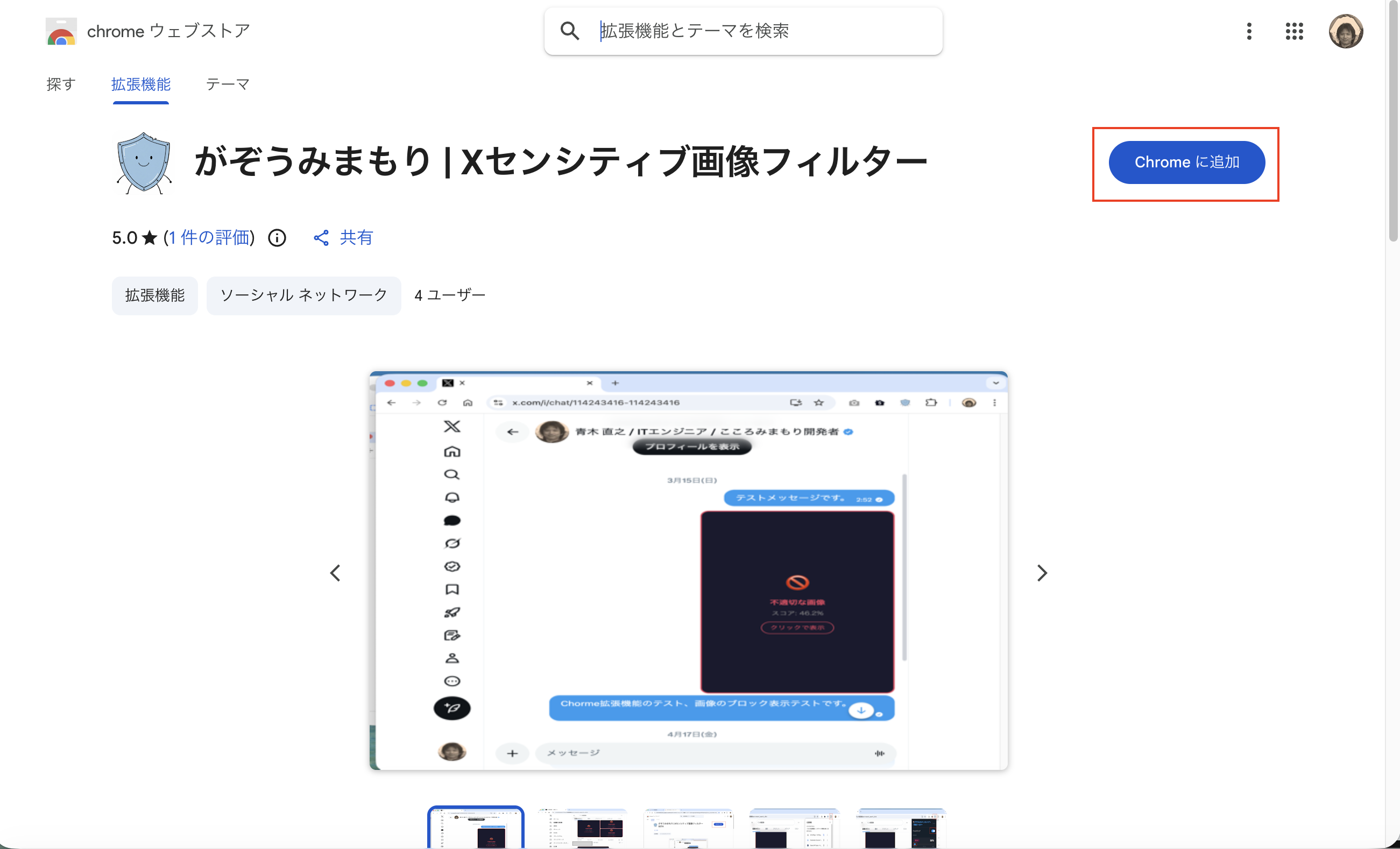
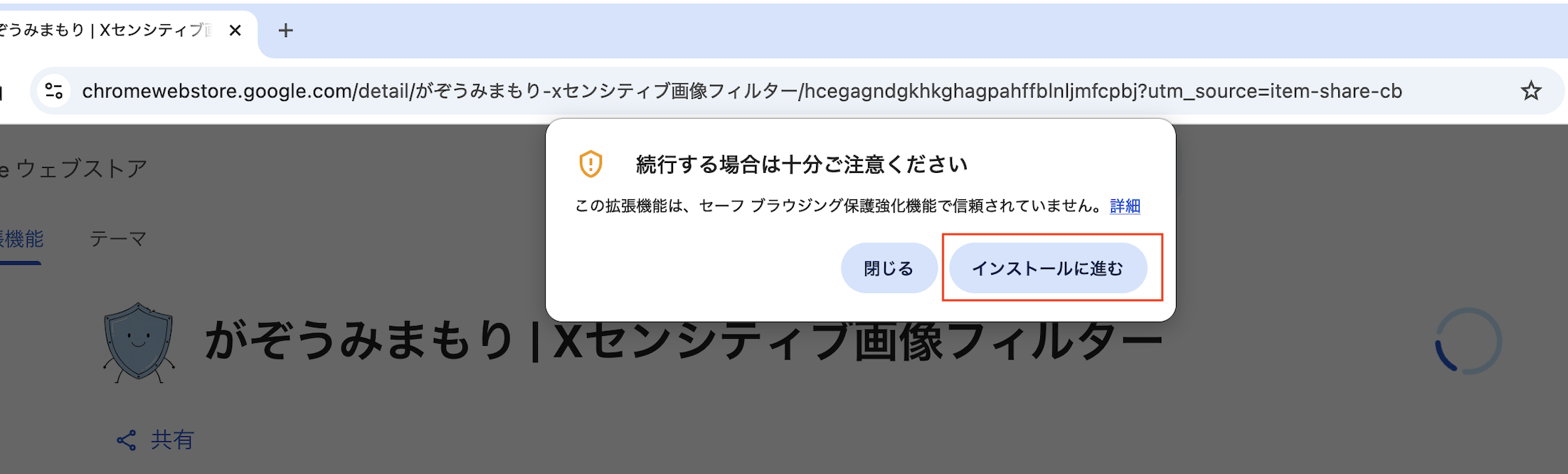
When the confirmation window appears, click the button to continue installation.
A confirmation window will be shown. Click the button to proceed with installation.
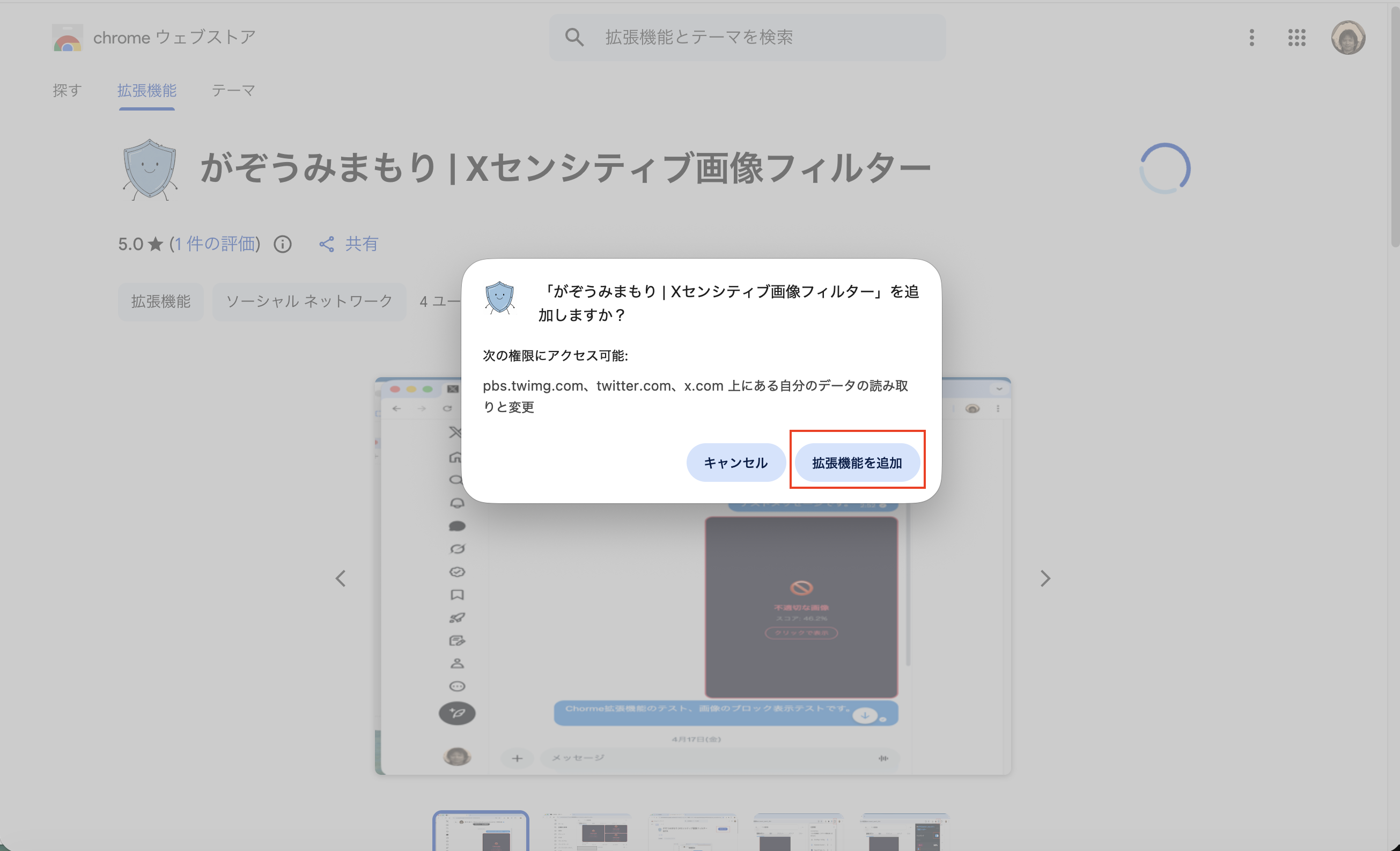
When the next confirmation window appears, click “Add extension”.
Confirm the permission prompt and click “Add extension”.
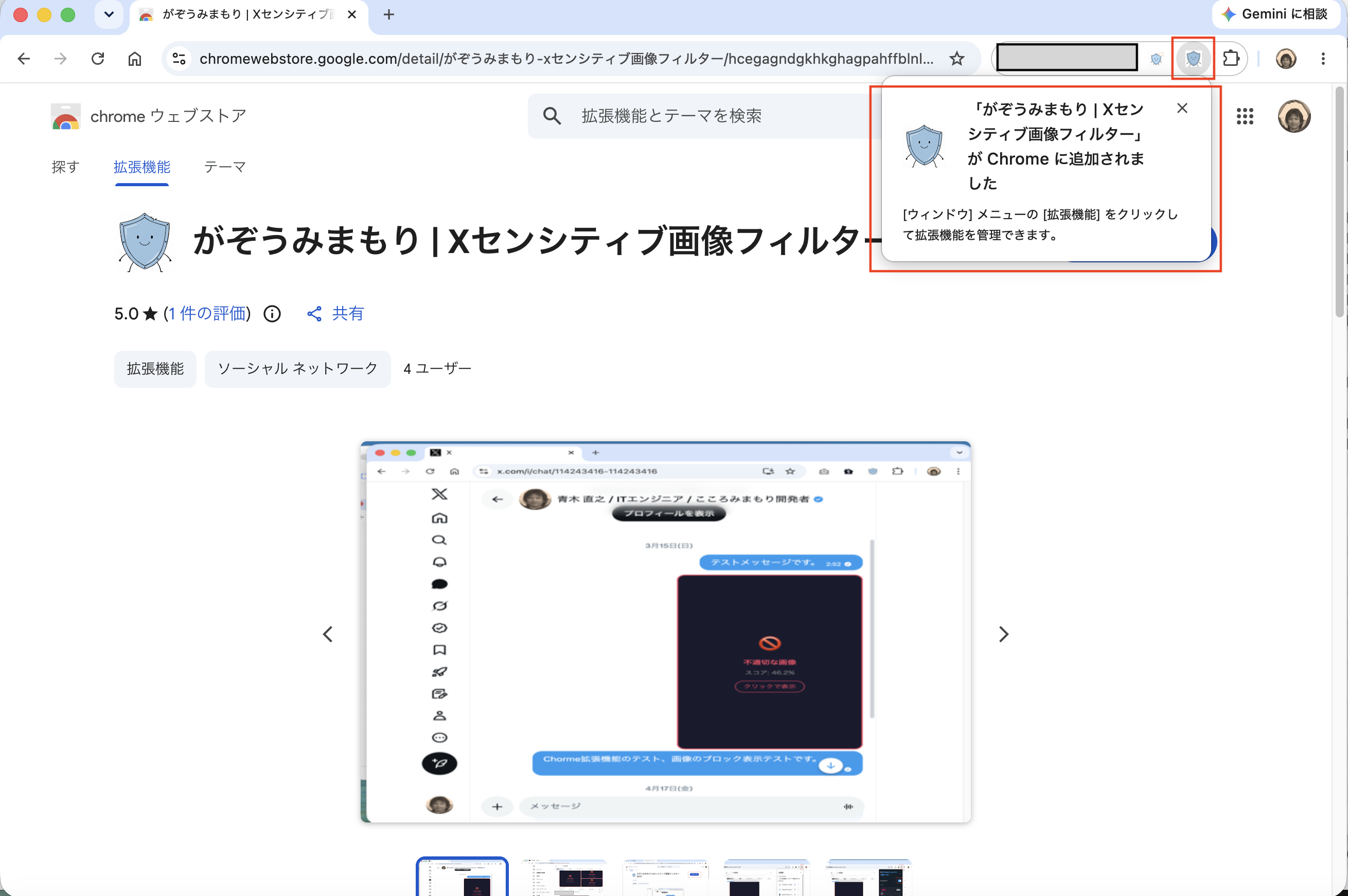
Confirm that Chrome shows a message saying Gazou Mimamori has been added.
A message will appear in the top-right area of the screen indicating that “Gazou Mimamori | Sensitive image filter for X” has been added to Chrome.
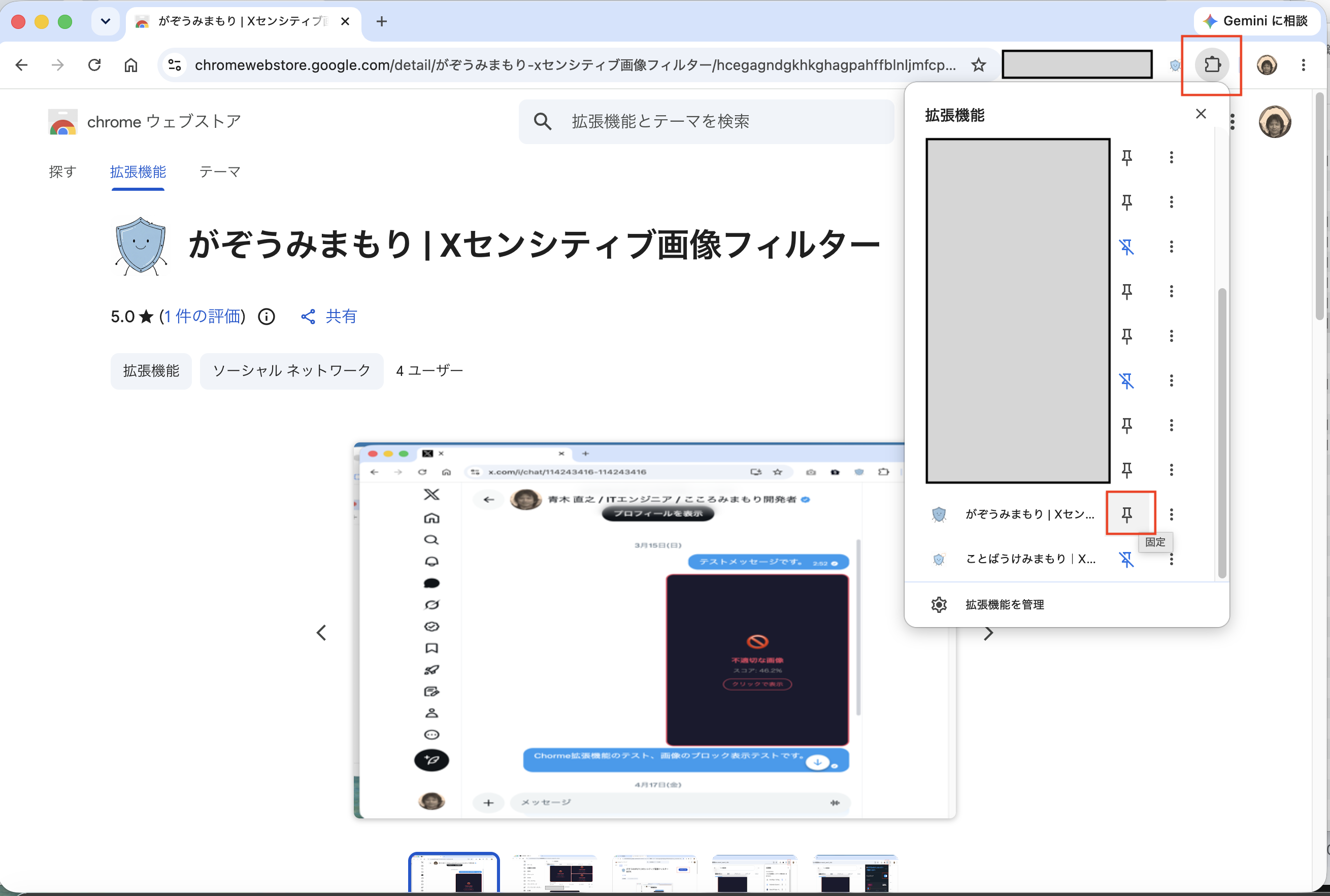
Open the extensions menu at the top right and pin Gazou Mimamori.
Click the extensions button in the top-right area, then click the pin for “Gazou Mimamori” so that its icon is visible in Chrome.
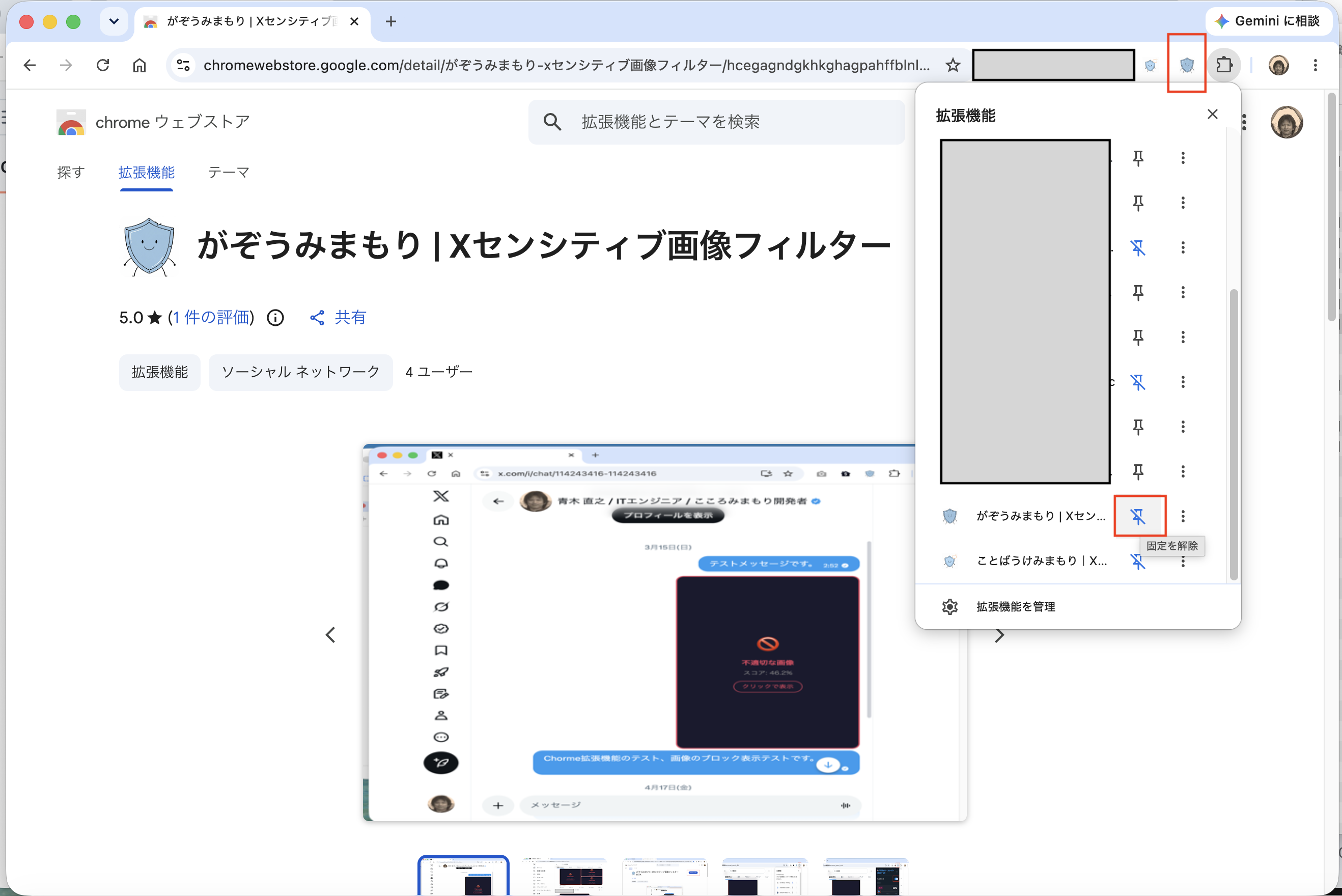
Confirm that the Gazou Mimamori icon is visible in Chrome.
Once the icon is shown in Chrome, the Extension is ready to use.
3. Image Blocking Sensitivity Threshold
The Extension uses an AI machine-learning model to calculate a score from 0 to 100% that represents how likely an image is to be uncomfortable or explicit. Images whose score is higher than your selected threshold are blocked.
Immediately after installation, the threshold is set to 30% (strict mode). This setting may also block images with swimwear or high exposure.
This is the probability calculated by AI that an image may be uncomfortable or explicit. The higher the score, the more likely the image is to be blocked.
| Mode | Threshold guide | Behavior |
|---|---|---|
| Strict | 0 to 40% | Blocks more images, including swimwear or images with high exposure. Use this when you want stronger filtering. |
| Balanced | 50% (standard) | A standard setting that blocks images that are clearly uncomfortable or explicit. |
| Gentle | 60 to 100% | Blocks only images with higher confidence. Use this if you want to reduce false positives. |
⚠️ Please note: Because images are judged automatically by AI, images that are not uncomfortable or explicit may be blocked by mistake, and some uncomfortable or explicit images may not be blocked. Please adjust the sensitivity slider to match your needs.
4. Change Sensitivity with the Slider
Click the extension icon in the top-right area of your browser to open the sensitivity settings panel.
Click the extension icon
Click the 🛡️ shield icon next to the address bar in the top-right area of Chrome. If needed, pin the Extension from the puzzle icon (🧩) so that you can access it quickly.
Check the “Filtering” toggle
Make sure the “Filtering” toggle at the top of the panel is on (blue). If it is off, images will not be blocked.
Choose “Display language”
Display language lets you switch the popup and blocked-image messages. The choices are “Auto,” “Japanese,” and “English.” When Auto is selected, the extension uses Japanese when both the PC and Chrome display languages are Japanese, and English otherwise.
Move the slider left or right to set sensitivity
Drag the “Sensitivity” slider left or right. Moving it left (strict) blocks more images. Moving it right (gentle) makes images less likely to be blocked.
Confirm that the panel says “Active”
If ● Active appears at the bottom of the panel, the setting is active. Reload the X page to apply the new sensitivity.
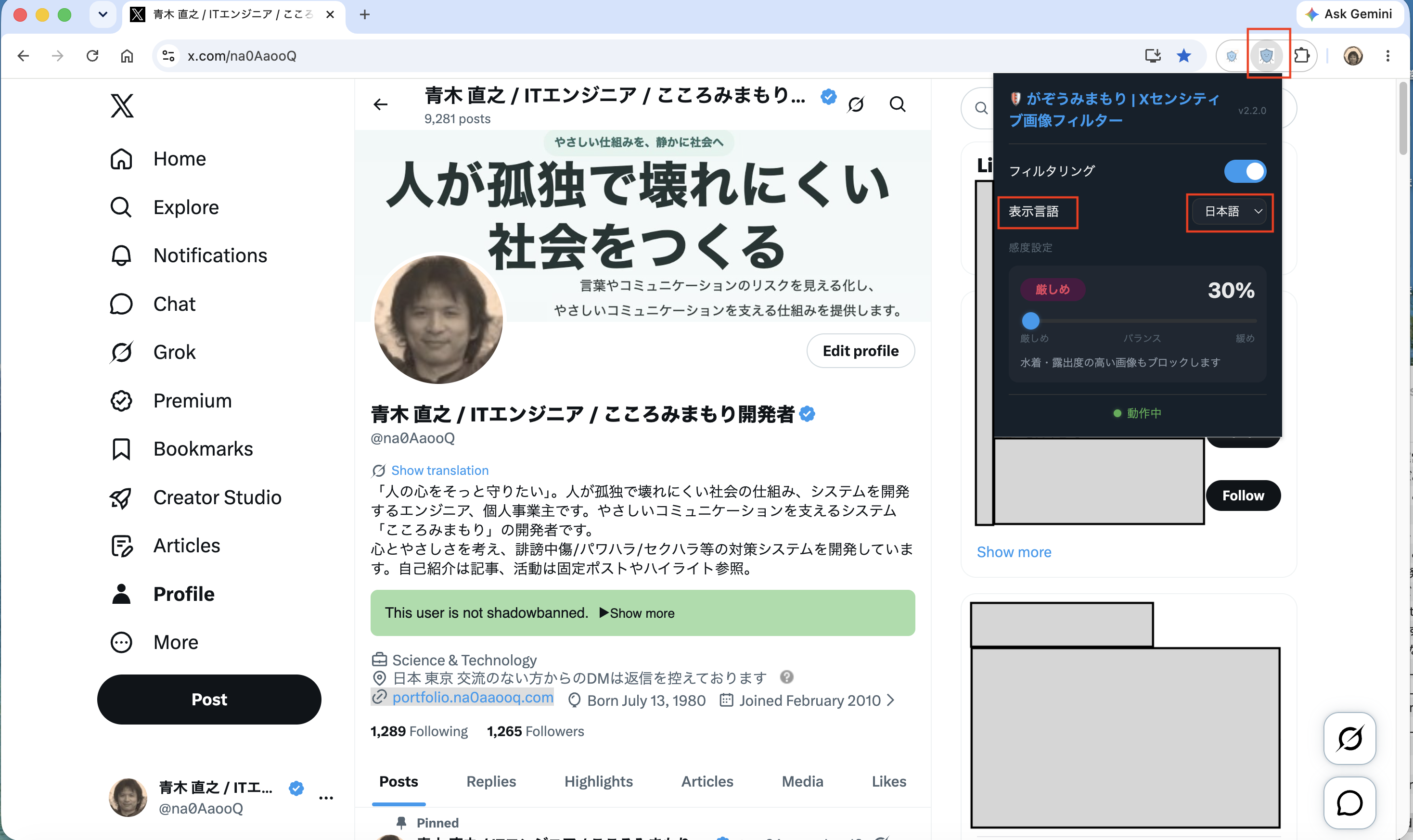
▲ Display language selector in the popup
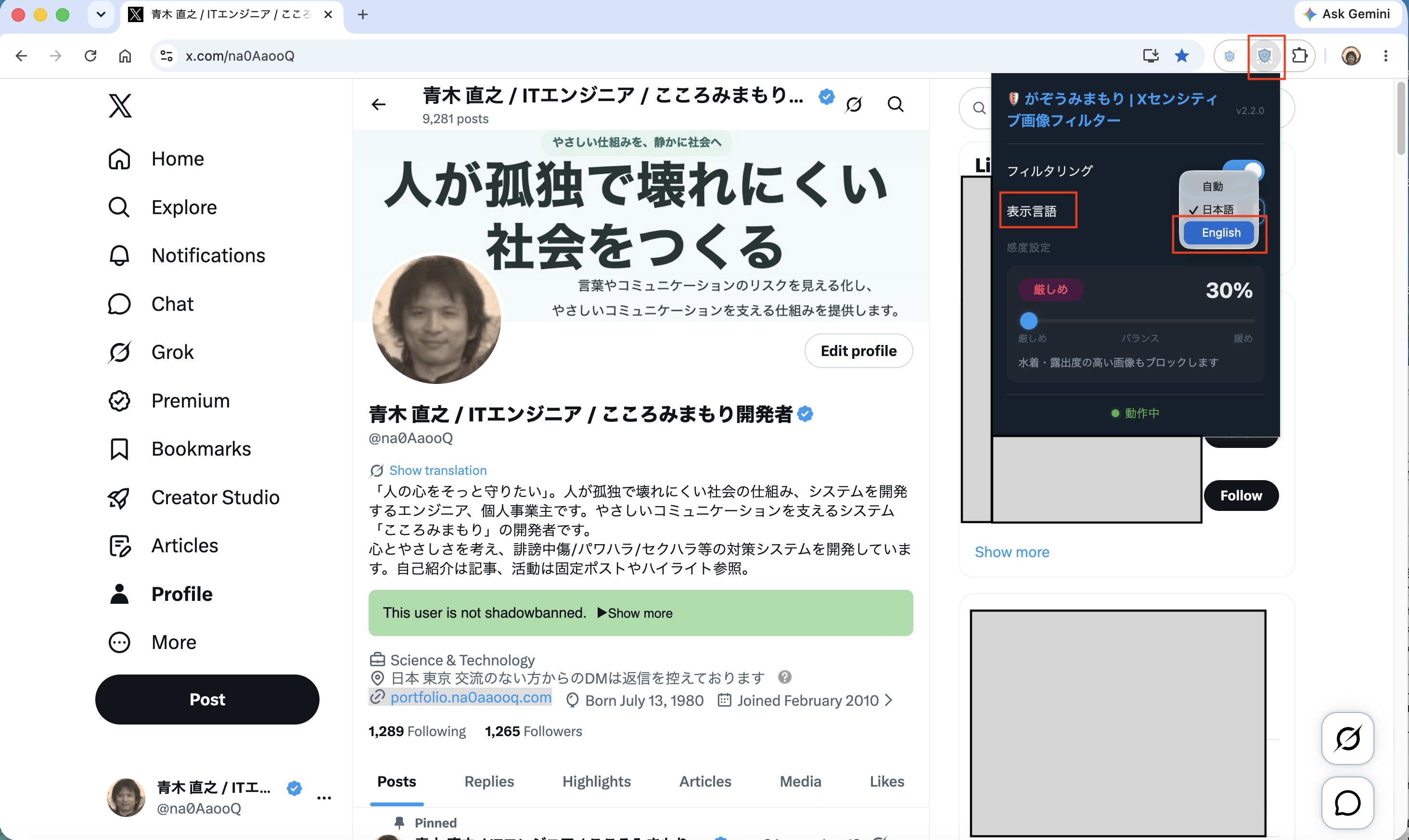
▲ Selecting English from the display language menu
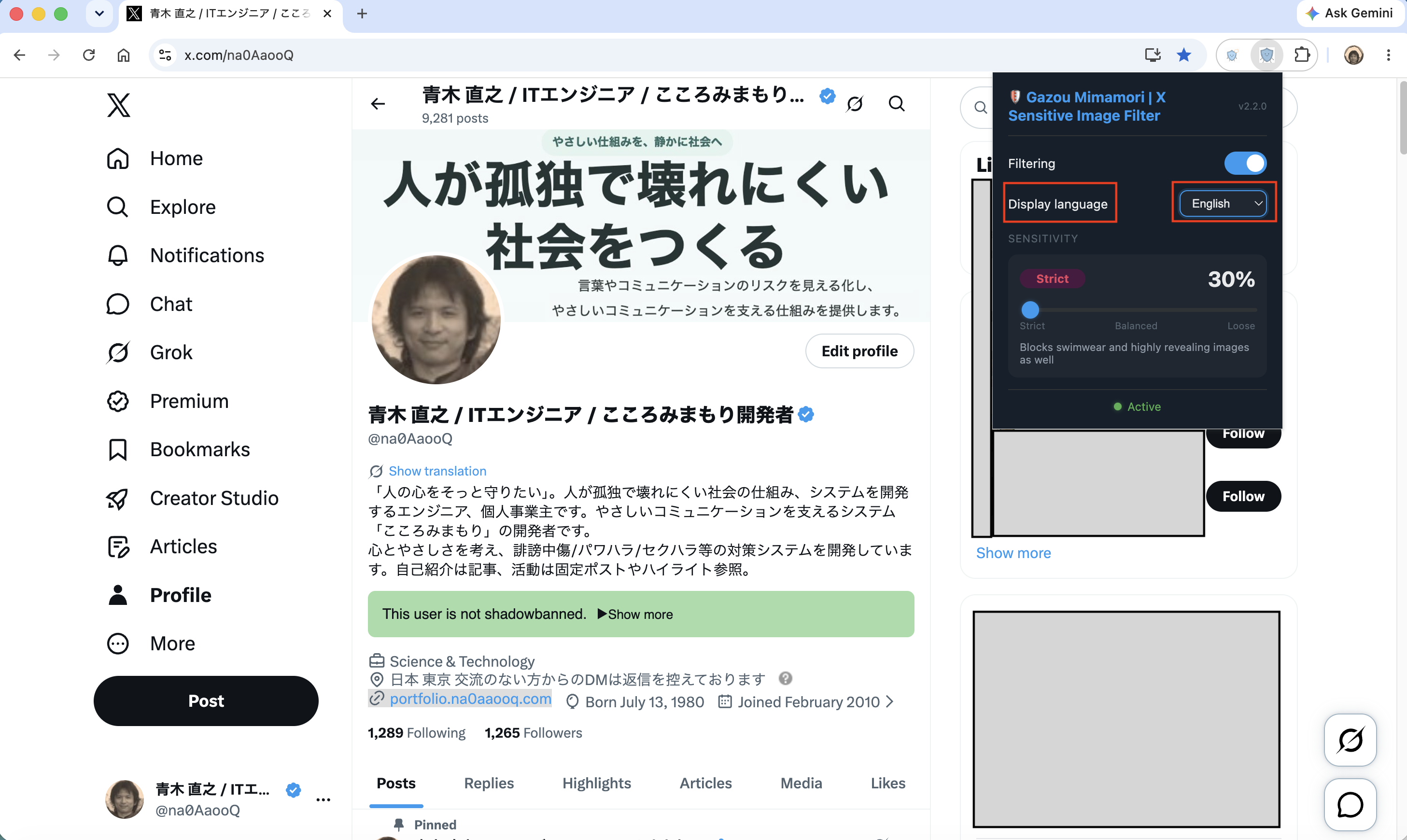
▲ Popup settings screen in English, strict mode at 30%
5. Example: Blocked Images in X Direct Messages
When an image in an X direct message is judged to be uncomfortable or explicit, it is replaced with a dark overlay like the example below.
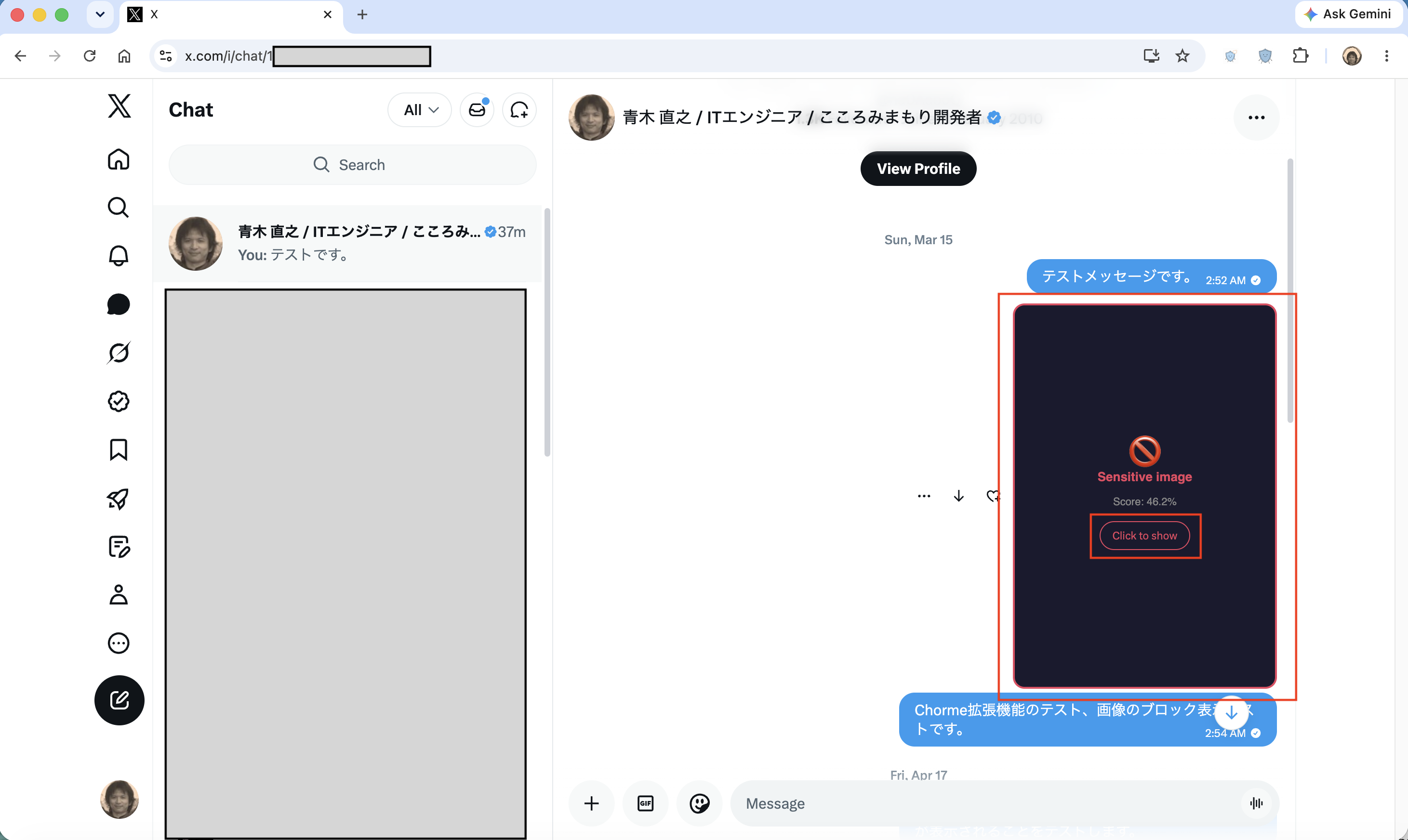
▲ Example blocked image in a DM screen (score: 46.2%)
💡 What you see: Over a blocked image, the Extension displays “🚫 Sensitive image” and the score calculated by AI. The score shows how far the image exceeded your selected sensitivity threshold.
6. Example: Blocked Images in the X Timeline
Images judged to be uncomfortable or explicit are also blocked in the X timeline, search results, and other image areas.
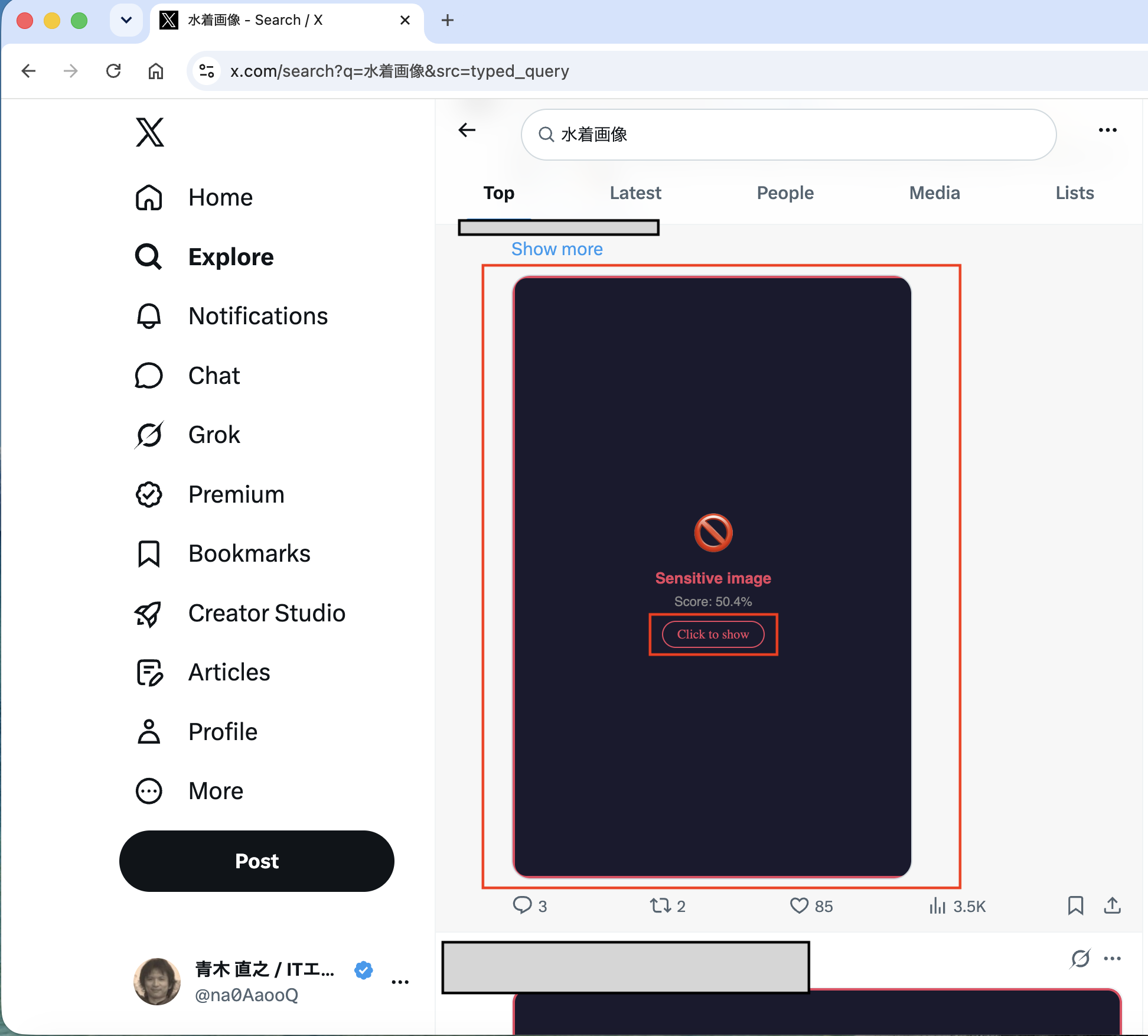
▲ Example blocked image in timeline search results (score: 50.4%)
💡 Supported areas: The Extension works across image areas on X, including the home timeline, search results, profile media tabs, and direct messages.
7. How to Show a Blocked Image
Even when an image is blocked, you can choose to show it one image at a time when necessary.
Find the “Click to show” button
A button like the one below appears in the center of the overlay on images judged to be uncomfortable or explicit.
Click the “Click to show” button
Clicking the button removes the block for that image and shows the original image. Other images are not affected.
Reloading the page reapplies the block
“Click to show” is temporary. If you reload the page, the same image will be blocked again if it still exceeds the threshold.
⚠️ If you notice false positives: If a specific image is blocked repeatedly by mistake, move the sensitivity slider toward “Gentle” to make it less likely to be blocked. → How to adjust the slider (Section 4)
8. Contact
If you have any questions, feedback, or comments about the Extension, please use the contact information on the Privacy Policy page.
← View the Privacy Policy← View the GitHub repository